
With the integration, you can publish individual blogs from My Blogs or generate and publish multiple planned articles through Strategy Builder.
Connect Blazly SEO to HubSpot
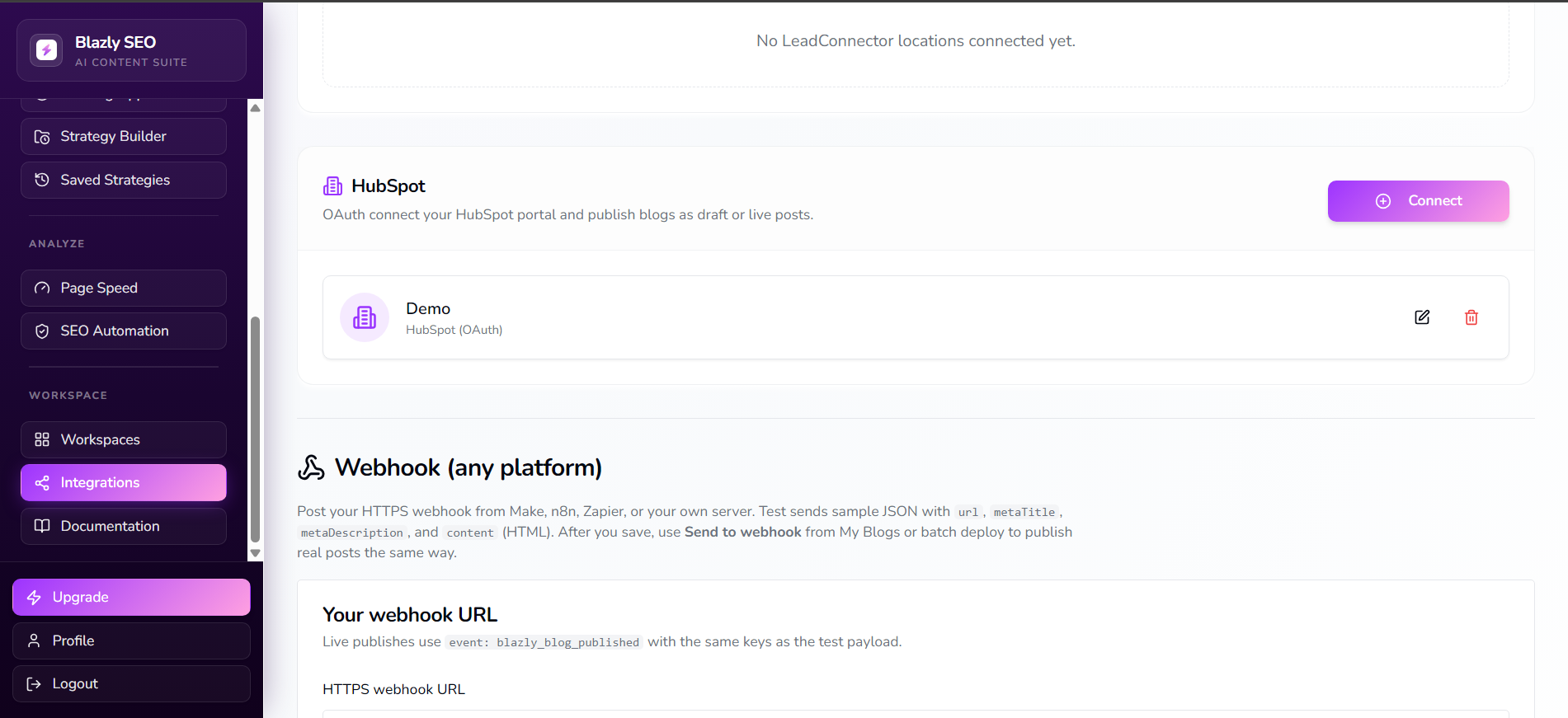
1. Open Integrations
- Log in to your Blazly SEO account.
- From the left navigation, go to Integrations.
- Under the available integrations, find HubSpot.
- Click Connect.
2. Connect HubSpot
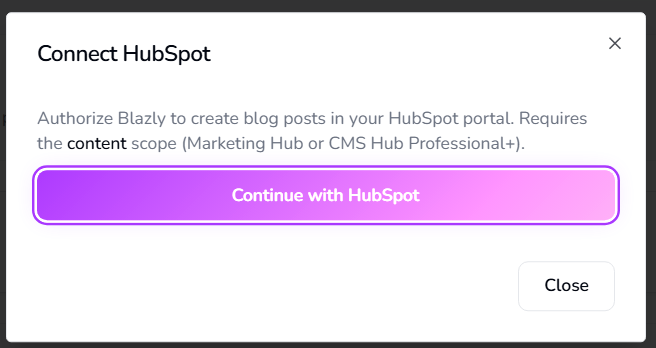
A connection window will appear explaining that Blazly SEO needs permission to create blog posts in your HubSpot portal.
- Click Continue with HubSpot.
- You will be redirected to HubSpot to authorize the connection.
3. Select your HubSpot account
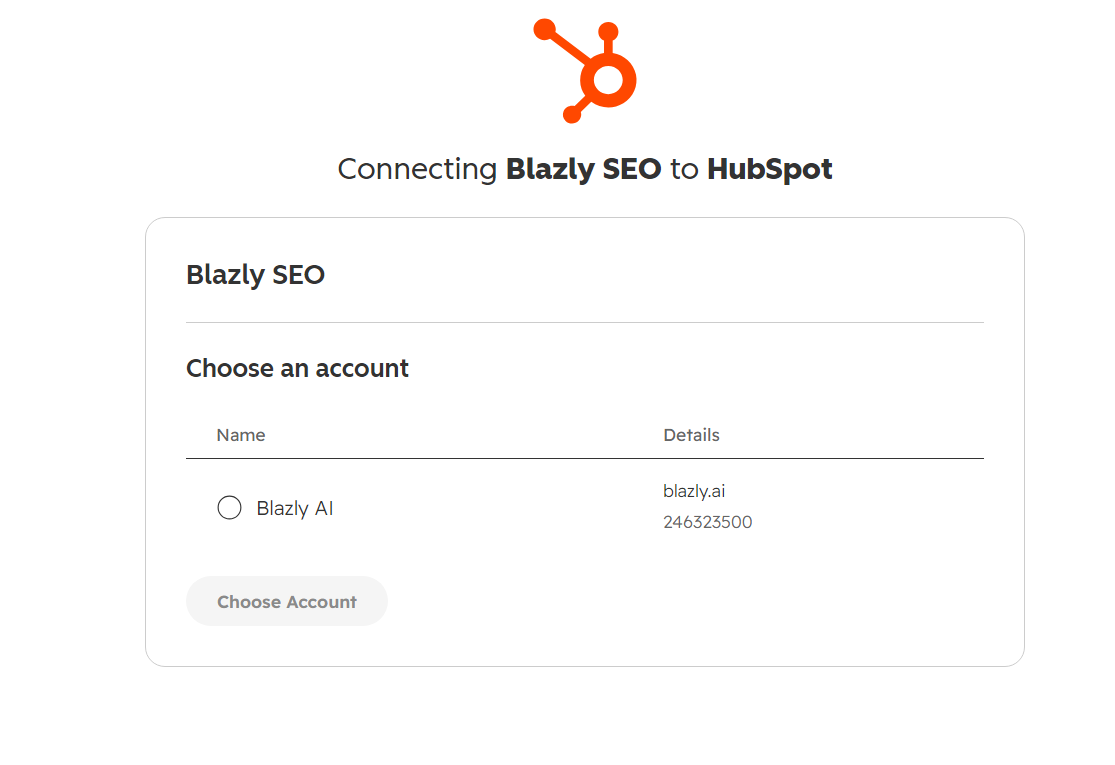
- HubSpot will show the accounts available to connect.
- Select the HubSpot account you want to connect to Blazly SEO.
- Click Choose Account and complete the authorization steps shown by HubSpot.
Once authorization is complete, you will be redirected back to Blazly SEO. Your connected HubSpot portal will now appear under Integrations.
Publish a Blog to HubSpot
Once your HubSpot account is connected, you can publish your blogs directly from Blazly SEO.
1. Open My Blogs
- From the Blazly SEO navigation, go to My Blogs.
- Select the blog post you want to publish.
2. Review your blog
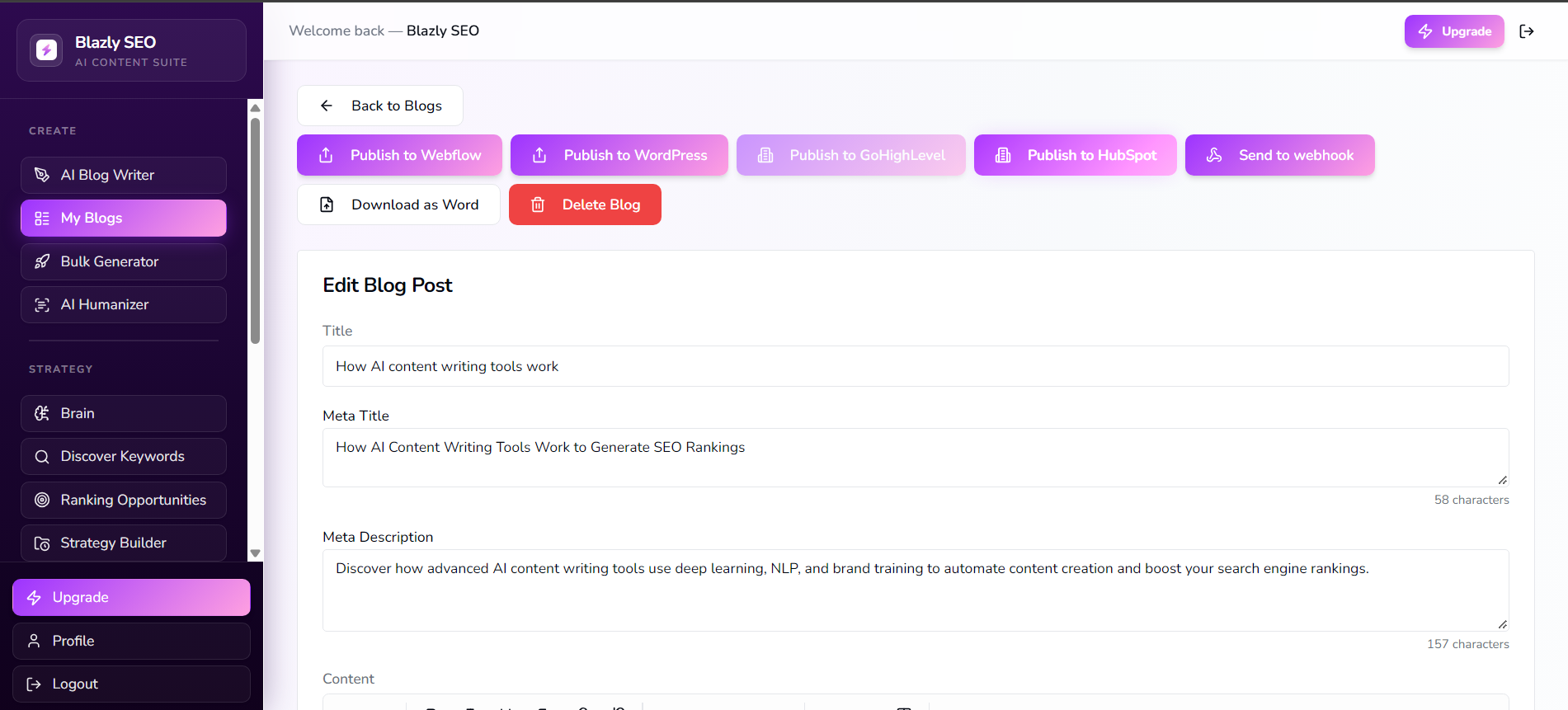
Before publishing, review the blog title, meta title, meta description, content, and URL slug. Make any necessary edits.
3. Publish to HubSpot
- Click Publish to HubSpot at the top of the blog editor.
- Blazly SEO will send the blog content to your connected HubSpot portal.
- Depending on your publishing settings, the blog can be published as a draft or live post in HubSpot CMS.
Your content is now available in HubSpot for publishing or further editing.
Publish Multiple Blogs with Strategy Builder
You can also use Strategy Builder to create and publish multiple planned articles.
1. Open a Strategy
Go to Strategy Builder and open the content strategy you want to execute. Your strategy can contain planned articles with topics, publish dates, and other content details.
2. Generate Your Articles
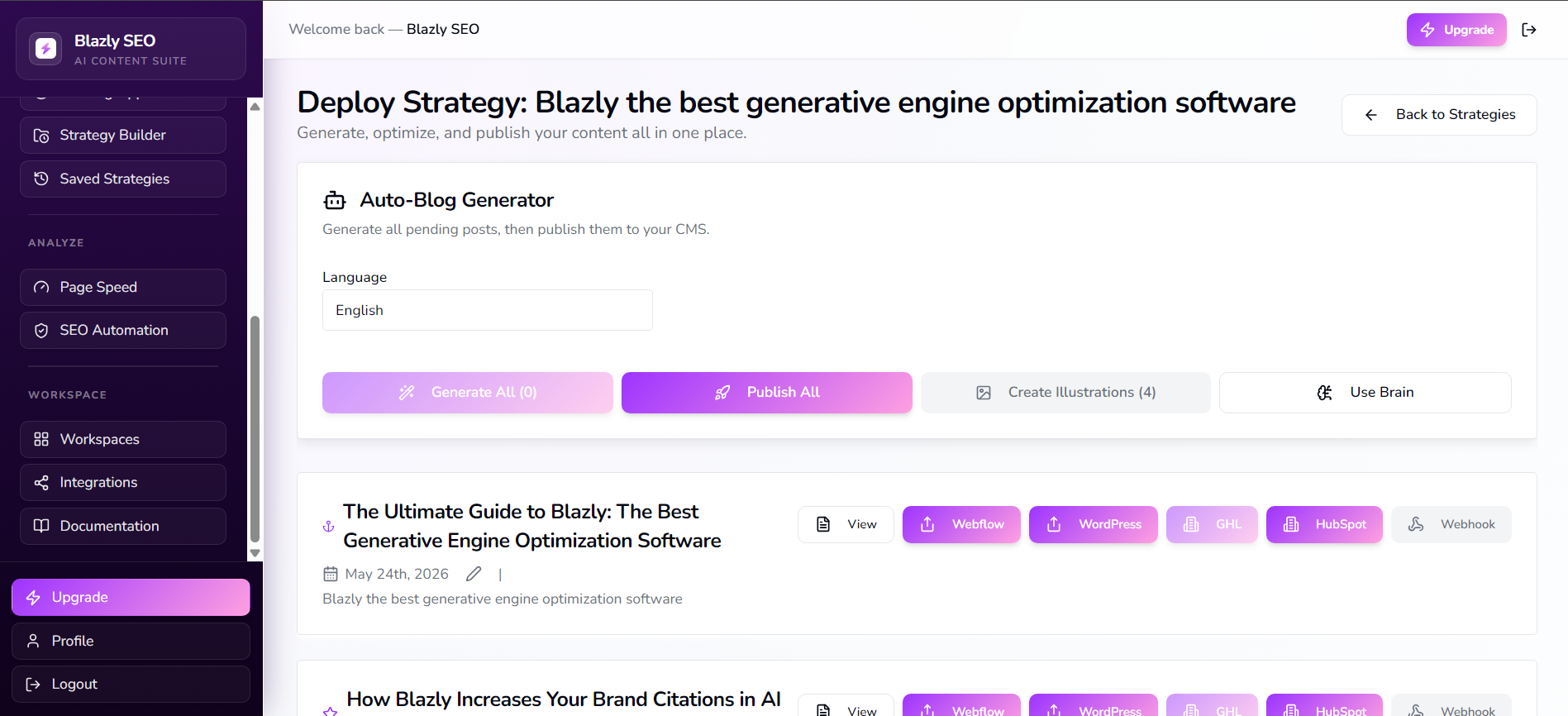
Click Generate All to generate all the articles in your strategy.
3. Publish All Articles
Once your articles are generated, click Publish All to publish them in bulk, or click HubSpot on an individual article to publish it separately. A publishing window will appear with the available platforms. Select HubSpot.
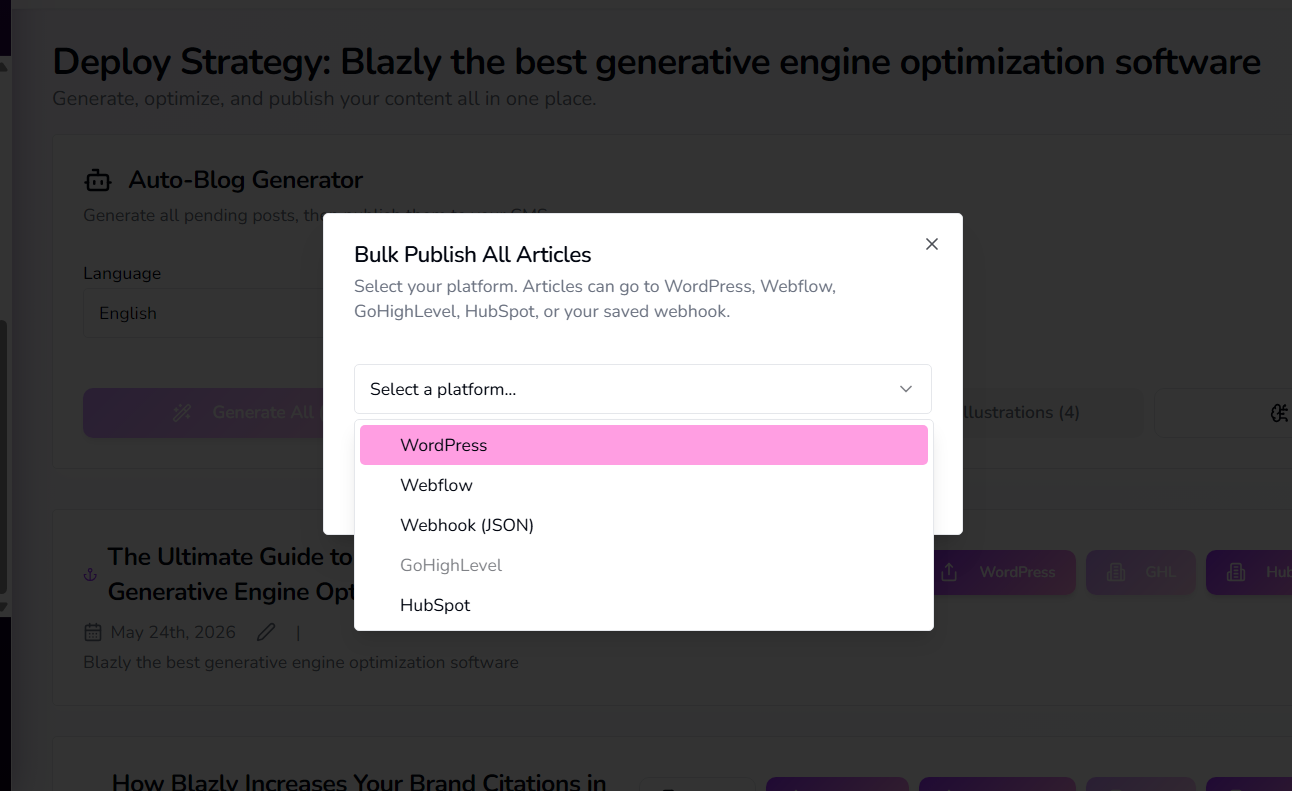
Blazly SEO will publish the generated articles to your connected HubSpot account. This allows you to move from content planning to article generation to HubSpot publishing without publishing each article manually.
Disconnect HubSpot
You can disconnect your HubSpot account from Blazly SEO at any time.
- Go to Integrations in Blazly SEO.
- Find the connected HubSpot account.
- Click the Delete/Trash icon.
- Confirm the action.
This removes the HubSpot connection from your Blazly SEO account. You will no longer be able to publish content to that HubSpot portal through the existing connection.
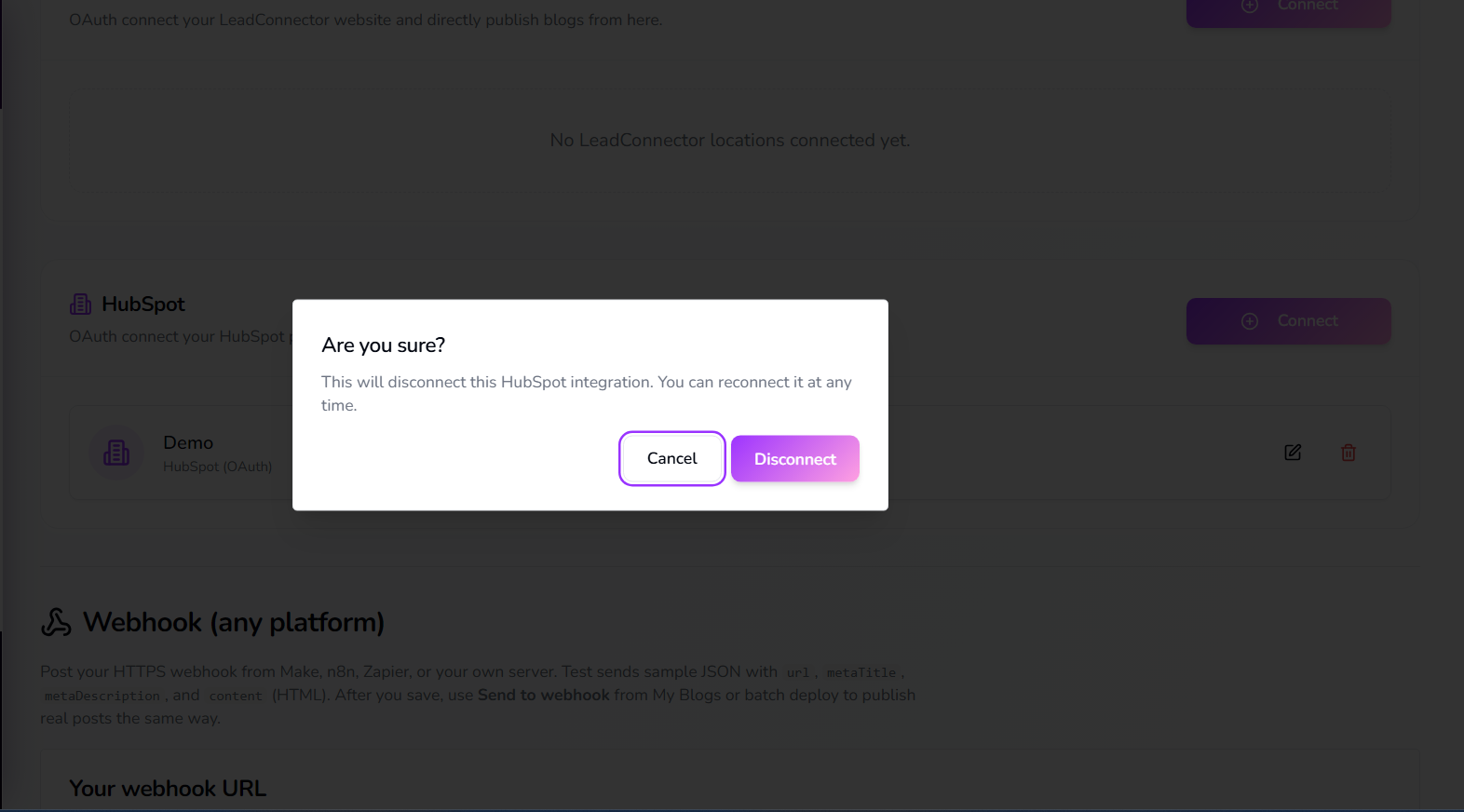
Note: Disconnecting the integration does not delete blog posts that have already been published to HubSpot.
Uninstall Blazly SEO from HubSpot
If you installed Blazly SEO through the HubSpot Marketplace and want to completely remove the app from your HubSpot account, you can uninstall it from your HubSpot account's connected apps/settings.
Disconnecting the account from Blazly SEO removes the connection on the Blazly side, while uninstalling the HubSpot app removes its authorization from your HubSpot account. Previously published content remains in HubSpot unless you delete those posts separately.
Using Blazly SEO with HubSpot
Once connected, your workflow is simple: Create content in Blazly SEO, optimize for SEO, review your blog, and publish to HubSpot. Blazly SEO handles the SEO content workflow, while HubSpot CMS remains your publishing destination.
Key benefits
- Create SEO-focused blog content with AI
- Optimize titles, metadata, and content
- Manage blogs in Blazly SEO
- Connect your HubSpot portal through OAuth
- Publish blogs directly to HubSpot CMS
- Publish immediately or use HubSpot's scheduling workflow
- Disconnect the integration whenever needed